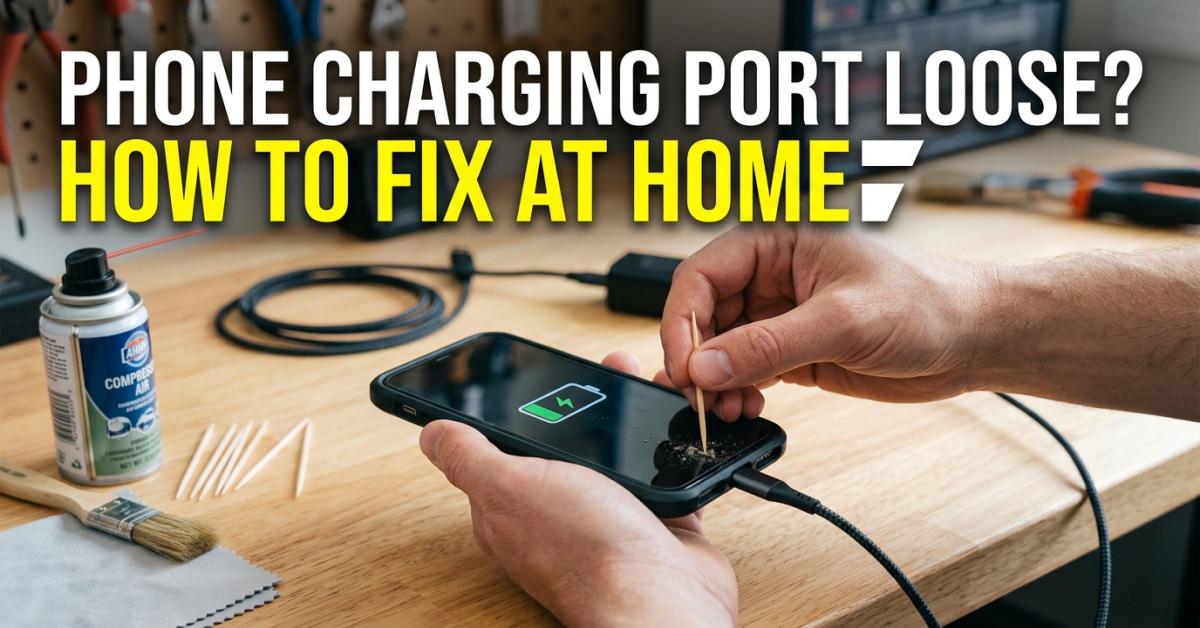
Phone Charging Port Loose? How to Fix at Home
Tired of holding your phone at a specific angle just to get a charge? Discover the ultimate guide to fixing a loose charging port, diagnosing cable issues, and restoring a solid connection without expensive professional repairs.
Make Someone's Day
Share this incredible guide!
It starts with a minor annoyance: you plug in your phone, and the charging icon doesn't appear. You wiggle the cable slightly, and it starts charging. A week later, you find yourself propping the phone up at a 45-degree angle with a book just to maintain a connection. A loose charging port is one of the most frustrating hardware issues a smartphone owner can face, but it doesn't always signal the end of your device's life.
Whether you are dealing with a modern USB-C flagship or an older Lightning-based device, the mechanical nature of charging ports makes them susceptible to debris, physical wear, and oxidation. In this guide, we will walk through the professional steps to diagnose, clean, and potentially repair a wobbly port using safe, proven techniques.
Internal Hardware and Maintenance Resources:
- Hardware Standards: Android 17 Hardware Requirements and Port Standards
- Battery Health: AI-Powered Battery Care: Extending Life Cycles
- Optimization: Fixing Battery Drain and Charging Efficiency
1. The Anatomy of the Connection: Why Ports Get Loose
To fix the problem, you must first understand the mechanical failure points. In a USB-C port, there is a central "tongue" or wafer that contains the contact pins. The cable shroud fits around this tongue. In a Lightning port, the pins are located on the interior walls of the cavity. Problems usually fall into three categories:
- Debris Compaction: Pocket lint and dust get shoved to the back of the port every time you plug in your cable, eventually forming a "cushion" that prevents the cable from seating fully.
- Physical Pin Misalignment: The small copper pins inside the port can become bent or flattened, losing their spring tension.
- Housing Wear: The actual metal frame of the port can stretch or warp due to lateral pressure (wiggling the cable while it's plugged in).
2. Phase One: The Non-Invasive Diagnosis
Before sticking any tools into your expensive hardware, you must rule out the easiest culprit: the cable. Charging cables are designed to be the "sacrificial" part of the charging equation. They are meant to break before the port does.
The Cable Swap Test
Grab a brand-new, high-quality cable (preferably the one that came with your device). If the new cable clicks into place firmly and charges without wiggling, your port is fine—your old cable’s "teeth" (the small spring-loaded clips on the connector) were simply worn out. If the new cable is still wobbly, the issue is definitely internal to the phone.
Software vs. Hardware Lag
Sometimes, a phone that seems "slow" to start charging isn't suffering from a loose port, but from software-based charging delays. This is especially common in newer operating systems. For more on this, check our guide on fixing Android lag and responsiveness after updates.
3. Phase Two: The "Lint Trap" Cleaning Method
Statistically, 80% of "broken" charging ports are actually just dirty. Over months of living in your pocket, the port acts as a vacuum for denim fibers and lint. Every time you plug the phone in, you compress that lint into a hard, felt-like layer at the bottom of the port.
Safety Warning: Never Use Metal
Do not use a safety pin, needle, or paperclip. Metal tools can short out the pins, causing permanent electrical damage to the motherboard. Only use non-conductive materials such as:
- A wooden or plastic toothpick (thinned down with a knife if necessary).
- A specialized plastic anti-static spudger.
- The plastic end of a dental flosser.
How to Clean Safely:
- Power Down: Turn off your device completely to minimize the risk of a short circuit.
- The Gentle Pick: Insert your toothpick into the port and gently scrape along the bottom (the back wall) of the cavity. Avoid the central "tongue" in USB-C ports.
- The Reveal: You will likely pull out small clumps of grey or blue lint. Continue until the toothpick comes out clean.
- Compressed Air: Use short bursts of canned air to blow out any remaining loose particles. Note: Hold the can upright to avoid spraying liquid propellant into the port.
4. Phase Three: Restoring Electrical Contact
If the port is clean but the connection is still intermittent, the internal pins may have lost their tension. This is a common issue with older devices that have seen thousands of plug-in cycles.
For USB-C devices, the central wafer needs to be perfectly centered. If it has been pushed slightly toward one side of the housing, the cable won't make a secure connection. You can use your non-conductive tool to very gently nudge the wafer back toward the center. However, if the pins themselves are visible and appear flattened, they may need to be "lifted" slightly using a microscopic hook—this is a task best left to those with a steady hand and a magnifying glass.
The Role of Oxidation
If you live in a high-humidity environment or have exposed your phone to moisture, a thin layer of oxidation can form on the pins. This acts as an insulator, preventing current flow. Using a tiny amount of 90% or higher Isopropyl Alcohol on a thin sliver of microfiber cloth wrapped around a toothpick can help clean the contacts. Ensure the phone is off and let it dry for at least 10 minutes before powering it back on.
5. Preventing Future Port Failure
Once you have restored your connection, the goal is to prevent the mechanical stress from returning. High-performance chips like the upcoming 2nm Snapdragon processors will require perfectly clean power delivery to maintain their efficiency.
- Magnetic Charging Cables: These use a small tip that stays permanently inside your port. The cable attaches via magnets, meaning zero wear and tear on the internal port pins.
- Wireless Charging: If your device supports it, use Qi or MagSafe charging for overnight sessions. This reserves the physical port for data transfer or emergency fast charging only.
- Port Plugs: If you work in construction or a dusty environment, buy small silicone port plugs to keep debris out when the phone is in your pocket.
6. When to Visit a Professional
If cleaning doesn't work and the pins appear physically broken or missing, the port assembly itself likely needs replacement. On most modern smartphones, the charging port is part of a daughterboard. While this is a modular part, replacing it requires opening the phone, which breaks the water-resistance seal.
Before seeking professional repair, ensure your device's issues aren't actually related to broader system requirements. Consult our Android 17 Developer Blueprint to understand how new power management APIs interact with hardware.
Summary: Restoring the Spark
A loose charging port doesn't have to be a death sentence for your smartphone. By systematically ruling out cable failure, carefully removing compacted debris, and maintaining the physical integrity of the pins, you can extend the life of your device by years. Always prioritize non-conductive tools and patience over brute force.
Keep your device in peak condition by following our latest hardware guides here on CodeIntra.
Loan EMI Calculator
fix loose charging port, phone not charging, clean USB-C port, repair wobbly charging port, iPhone charging port fix, Android charging port loose, mobile hardware repair guide
Guide Details
| Views | 62 |
| Category | Android Updates & News |
| Published | 26-Mar-2026 |
| Last Update | 20-Jun-2026 |
|
30
|
|