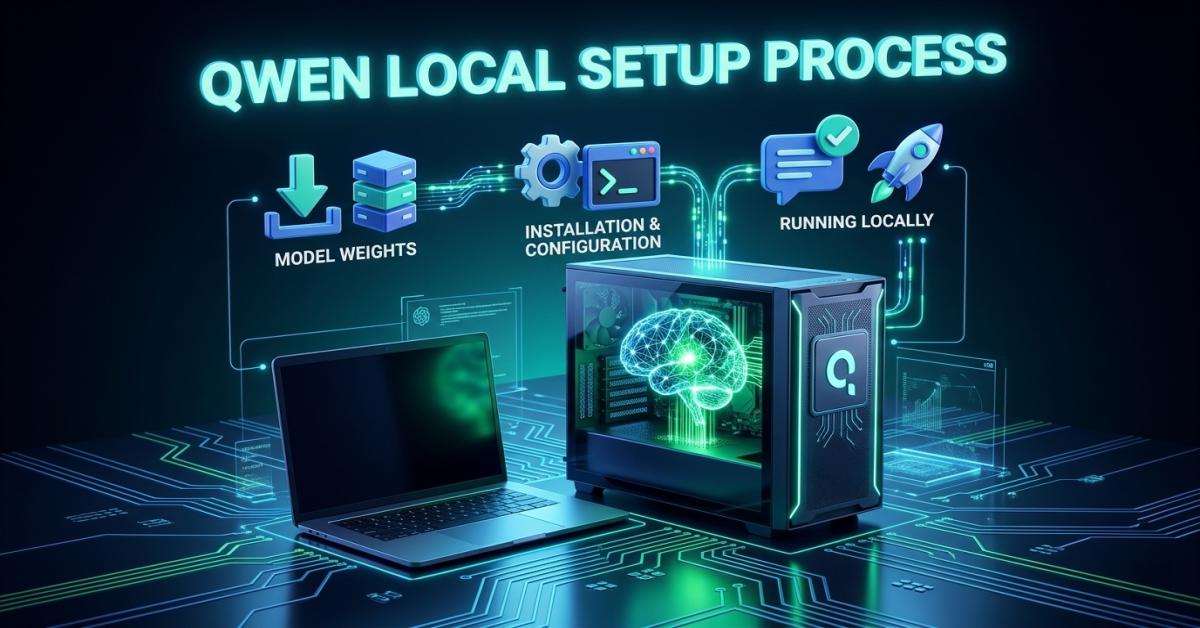
The Ultimate Qwen Local Setup Process Guide
Learn how to deploy Qwen locally with our comprehensive technical guide. Master the hardware requirements, software configurations, and optimization techniques for high-performance, private AI.
Make Someone's Day
Share this incredible guide!
Artificial Intelligence doesn't have to live in the "cloud." For many, the best way to use AI is right on their own desk. A Qwen local setup allows you to run Alibaba's world-class AI model on your own hardware. This means your data never leaves your room, you don't need an internet connection to chat, and it's completely free to use once set up.
If you've heard that setting up AI is only for "coding geniuses," don't worry. This guide is designed for everyone. We will walk you through the process step-by-step, from checking your computer's power to having your first conversation with Qwen.
Helpful Resources for Your Setup:
- System Tuning: Optimizing Your OS for High-Performance Apps
- Hardware Context: Understanding the Chips That Power Modern AI
- Device Longevity: Managing Power for High-Performance Workflows
1. What is Qwen and Why Should You Run it Locally?
Qwen is a series of Large Language Models (LLMs) created by Alibaba. In simple terms, it's a "brain" that can write, code, and solve math problems. By running it "locally," you are installing this brain on your computer's hard drive rather than talking to it over the internet.
The benefits are clear:
- Absolute Data Privacy: When you use cloud-based AI, every prompt is stored on a remote server. With a local Qwen setup, your data remains on your physical disks. This is critical for legal, medical, and proprietary coding work.
- No Internet Dependency: Whether you are traveling, in a dead zone, or simply want to save bandwidth, local AI works 100% offline.
- Unlimited Usage: Most free tiers of AI services have "message caps." Locally, the only limit is your electricity bill.
- Customization: You can "tune" the AI to behave exactly how you want, without filters or forced personality traits.
2. Hardware Prerequisites: Can Your Computer Handle It?
Running an AI is like running a very high-end video game or 4K video editing software. Your computer needs specific "muscles" to do it well. Before you start, check these three things:
The Memory (RAM) - The Working Space
RAM is where the AI "lives" while it's thinking. If you don't have enough, the AI will be painfully slow or crash.
- 4GB - 8GB RAM: Can only run the tiny versions (0.5B or 1.5B models). Good for basic text, but lacks "deep" intelligence.
- 16GB RAM: The "Sweet Spot" for beginners. This runs the Qwen 7B model comfortably at 4-bit quantization.
- 32GB+ RAM: Allows for the 14B or 32B models. This is where the AI becomes genuinely competitive with paid services like ChatGPT Plus.
The Graphics Card (GPU) - The Accelerator
While a CPU can run AI, a GPU (Video Card) does it 10x to 50x faster.
- NVIDIA (RTX Series): The absolute best choice due to CUDA cores. An RTX 3060 with 12GB VRAM is the legendary budget king for local AI.
- Apple Silicon (M1/M2/M3/M4): These are fantastic. Because Mac uses "Unified Memory," a Mac with 24GB of RAM can treat all of it like Video RAM, allowing for very large models.
- AMD/Intel Integrated: Possible, but much slower. You will likely rely on your CPU's speed here.
Storage and Thermal Management
You need a Solid State Drive (SSD). AI models are massive files (several gigabytes) that need to be read into memory instantly. An old spinning HDD will take minutes just to load the app. Furthermore, ensure your cooling fans are working; AI generation puts a heavy load on your processor.
3. Method 1: The One-Click Way (Ollama)
Ollama is the current industry standard for simple, local AI. It acts as a "manager" for your models.
Full Step-by-Step Installation:
- Download: Visit Ollama.com.
- Install: Run the installer. On Mac, it will move to your Applications folder. On Windows, it will sit in your System Tray (bottom right corner).
- Open Your Terminal:
- Windows: Press the Windows Key, type "cmd" or "PowerShell", and hit Enter.
- Mac: Command + Space, type "Terminal", and hit Enter.
- Download Qwen: Type the following command and wait: ollama run qwen2.5
By default, this downloads the "7B" model, which is roughly 4.7GB. If your internet is slow, this might take a few minutes.
- Chatting: Once it says "Success," you can type directly into the window. Try asking: "Who are you?" or "Write a python script to scrape a website."
- Closing: Type /exit to close the chat.
4. Method 2: The Professional GUI (LM Studio)
If you want a program that looks like a real chat app with buttons and sliders, LM Studio is the gold standard.
Step-by-Step Setup:
- Download: Go to LMStudio.ai.
- Search: Open the app and click the Magnifying Glass. Search for "Qwen 2.5".
- Quantization Levels (Important): You will see "Q4_K_M", "Q8_0", etc.
- Q4_K_M: The best balance of speed and smarts. Recommended for almost everyone.
- Q8_0: Very smart, but uses double the memory.
- Download: Click the download button on the right side of the version you want.
- Load the Model: Click the "AI Chat" (Speech Bubble) icon on the left. At the top, click the dropdown to select the Qwen model you just downloaded.
- The "GPU Offload" Slider: On the right-hand panel, look for "GPU Settings." If you have an NVIDIA card or a Mac, move the "GPU Offload" slider to Max. This makes the AI answer instantly instead of word-by-word slowly.
5. Deep Dive: Understanding Quantization and Model Sizes
To truly master your local setup, you need to understand the numbers. If you choose a model that is too big, your computer will "swap" to the hard drive, and the AI will generate about one word every ten seconds.
The "B" Number (Parameters)
- 0.5B / 1.5B: Tiny. Can run on a modern smartphone or a very old laptop. Good for simple sorting or summarizing short emails.
- 7B: The industry standard. As smart as GPT-3.5 in many tasks. Requires 8GB - 16GB RAM.
- 14B / 32B: The "Logic King." Excellent for complex coding and deep creative writing. Requires 24GB - 32GB RAM.
- 72B: The heavyweight champion. Competitive with GPT-4. Requires 64GB+ RAM or professional workstation GPUs.
What is Quantization?
Think of quantization like an MP3 file. An uncompressed model is like a FLAC or WAV file—perfect but huge. A 4-bit quantized model (Q4) is like a 192kbps MP3—it sounds 99% the same to the human ear but takes up 1/4th of the space. Always aim for Q4_K_M or Q5_K_M for your first setup.
6. Troubleshooting Common "Local AI" Issues
Setting up AI can sometimes hit a snag. Here are the most common beginner errors:
- "Error: Cuda not found": Your NVIDIA drivers are likely out of date. Go to the NVIDIA website and download the latest "Game Ready" or "Studio" driver.
- "The AI is extremely slow": Check your Task Manager (Windows) or Activity Monitor (Mac). If your "CPU Usage" is at 100% but your "GPU Usage" is at 0%, the model is running on your processor instead of your graphics card. In LM Studio, ensure "GPU Offload" is turned on.
- "Ollama command not recognized": You need to restart your terminal/PowerShell after installing Ollama so it can register the new command.
- "The AI is repeating itself": This is a settings issue. Increase the "Frequency Penalty" or "Repeat Penalty" in the app settings to 1.1 or 1.2.
7. Advanced Use Cases: Beyond Just Chatting
Once you have Qwen running, you can do much more than just asking it questions.
1. Local Coding Assistant
You can connect your local Qwen to VS Code using extensions like "Continue" or "Tabby." This gives you a "GitHub Copilot" experience that works entirely offline. It can see your whole project and help you debug without your code ever touching a server.
2. Document Analysis (RAG)
Using tools like "AnythingLLM" or "PrivateGPT," you can point Qwen at a folder of 1,000 PDFs. You can then ask: "What was the total spend in the March invoices?" and the AI will read your local files to find the answer. This is the ultimate tool for researchers and accountants.
3. Automation with Python
Since Ollama runs a local server, you can write a simple Python script to send it 100 emails and ask it to categorize them as "Urgent" or "Spam." It does the work for you while you grab a coffee.
8. Ethical Considerations and Future-Proofing
As we head into 2026, the power of local AI will only grow. With the emergence of 2nm chipset technology, the phone in your pocket will soon be able to run the models that currently require a desktop PC. However, with great power comes responsibility. Local models often have fewer "guardrails" than cloud models. It is up to the user to ensure the technology is used for constructive and ethical purposes.
Summary: You Are Now an AI Architect
You have successfully navigated the Qwen local setup. Whether you chose the terminal-based speed of Ollama or the visual richness of LM Studio, you have taken the first step toward true digital independence. You are no longer just a user of AI; you are a host. Explore different model sizes, experiment with quantization, and most importantly, enjoy the freedom of a private, powerful assistant that lives right on your desk.
For further deep dives into system optimization and the hardware of the future, visit our dedicated sections at CodeIntra.
Qwen local setup, run Qwen 2.5 locally, Ollama Qwen guide, LM Studio Qwen installation, private LLM deployment, local AI hardware requirements 2026, optimize Qwen performance.
Guide Details
| Views | 115 |
| Category | AI Tech Solutions |
| Published | 26-Mar-2026 |
| Last Update | 20-Jun-2026 |
|
30
|
|